Installation Guide
The location of the add-in manager varies depending on your Outlook client.
Here are some likely locations:
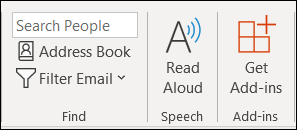
- Check the ribbon for a button labeled "Get Add-ins".
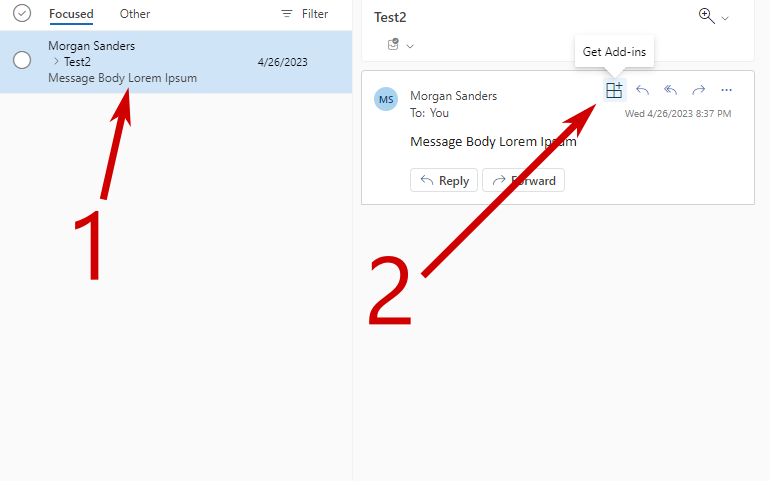
- Click on a random email in your inbox.
- Find a button labeled "Get Add-ins" on the top-right corner of the read surface.
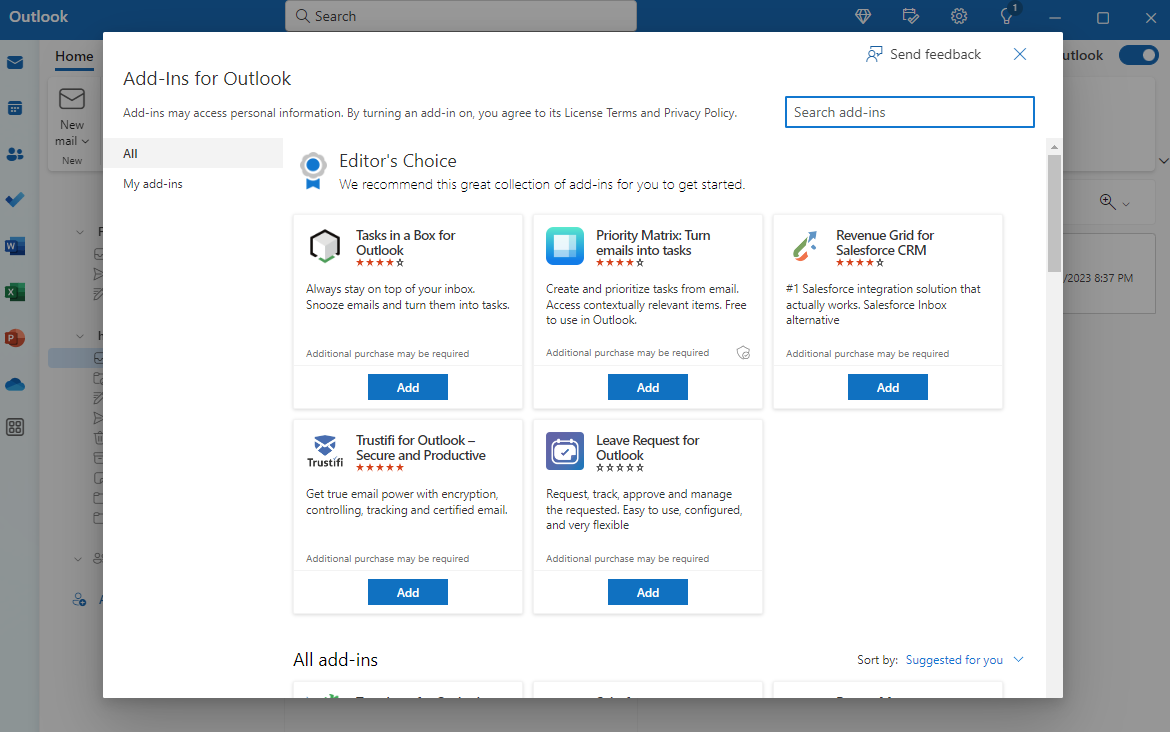
Once opened, you should see this dialog:
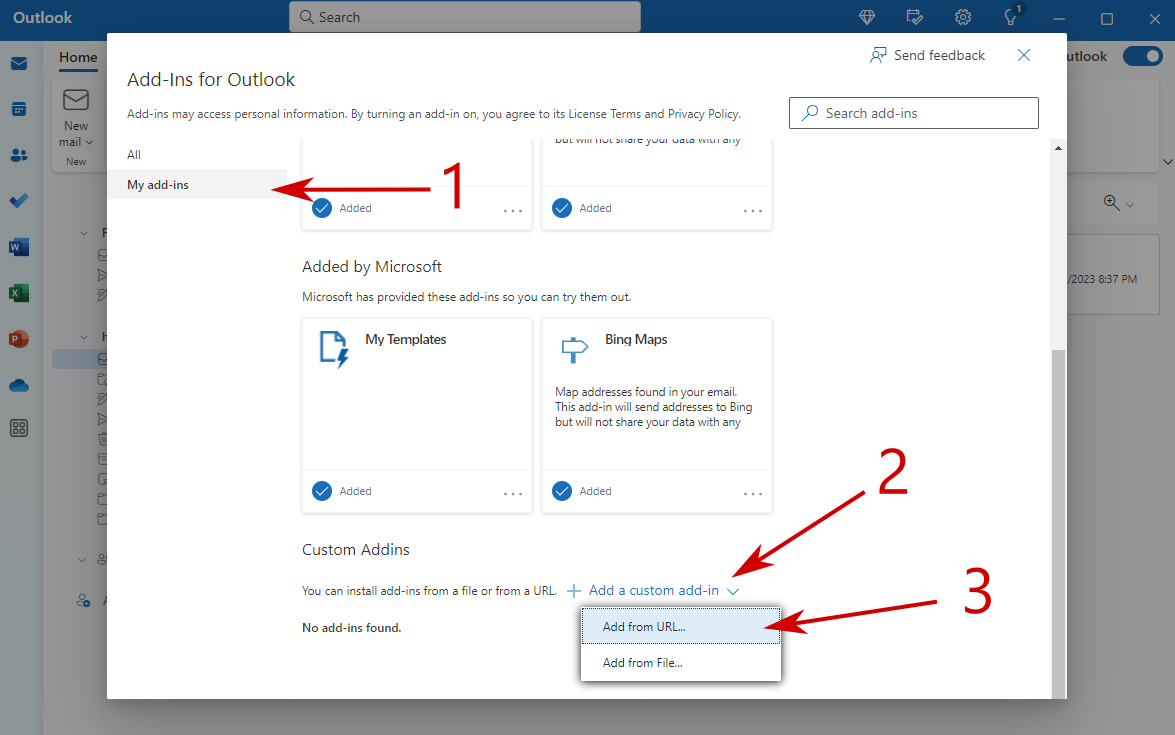
- Click on the "My add-ins" tab.
- Scroll down to the "Custom add-ins" section and click "Add a custom add-in".
- Click on the "Add from URL" button.
- Paste in the following URL:
https://outlook-power-tools.heledron.com/manifest.xml
Updates will be installed automatically when they are available.
You will be prompted to reload the panel when this happens.
Legacy Manifests:
- V1:
manifest-v1.xml